
Practical guide
Rotation and absences: organising the practice schedule
“Who in the nursing practice works tomorrow morning? And in four months? And on New Year’s Day?” In a practice of several nurses, these questions keep coming back. This guide shows how Tournée Facile answers them for you: a rotation set once, holidays declared with their substitute, and a nursing schedule ready when you need it. You can tell your substitute well ahead which days she covers, and stop worrying about your cousin’s wedding.
Take the practice of Camille, Hakim and Julie. Camille works every Monday and Tuesday, Julie, the locum, on Wednesdays, Hakim every Thursday and Friday, and one weekend in two is scheduled for either Camille or Hakim. In early November, Camille is away for two weeks and Julie covers for her. Their schedule is what the captures in this guide show, on a demo practice whose patients are fictitious. The captures are of the French app.
Allow five minutes. For the round itself (patients, visiting order, the day on the road), see the guide Planning a nursing round.
The schedule says who works a slot, the round says where to go and what to do
Rounds are built every day from the calendar: one in the morning, one in the evening, with their patients and their visiting order. The schedule touches none of that. It answers a single question: which nurse should do the round? Three things decide, strongest first:
- an absence: the absent nurse is covered, and her round goes to her substitute;
- an assignment made by hand: it comes before the rotation;
- the rotation: it covers everything else.
Opening the practice schedule
Open the Tours tab and click “Planning”, bottom right. Then choose the scale:
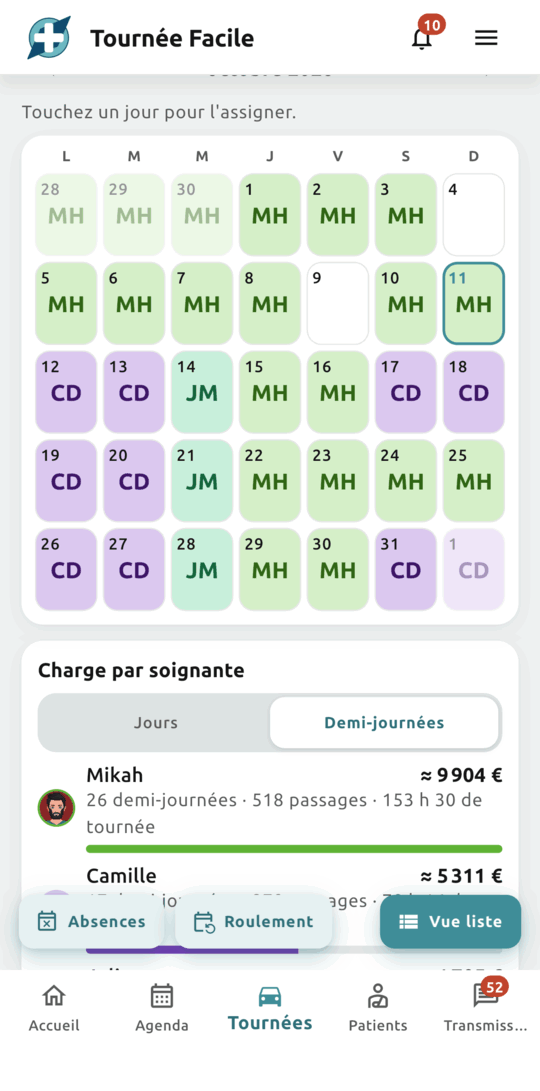
- Day: hour by hour, one row per nurse, plus an “Unassigned” row for rounds not assigned yet;
- Week: a morning and an afternoon per day to assign;
- Month: one cell per day to assign.
Each nurse is identified by her colour and initials; the same colours appear in the calendar, the rounds and the handover notes. A white cell is not assigned to anyone yet. Click “Only me” to see yours alone, with the period’s load: “You work 5 half-days this week.”
Under the week and the month, the load per nurse gives the days or half-days scheduled for each one, her visits and her hours on the road. The practice’s owners and associates also see the projected revenue, as an estimate. To share or print it, click the printer at the top: the document holds no patient data at all.
Setting the rotation
At the bottom of the schedule, click “Rotation” to set your typical week, or your typical weeks if you alternate.
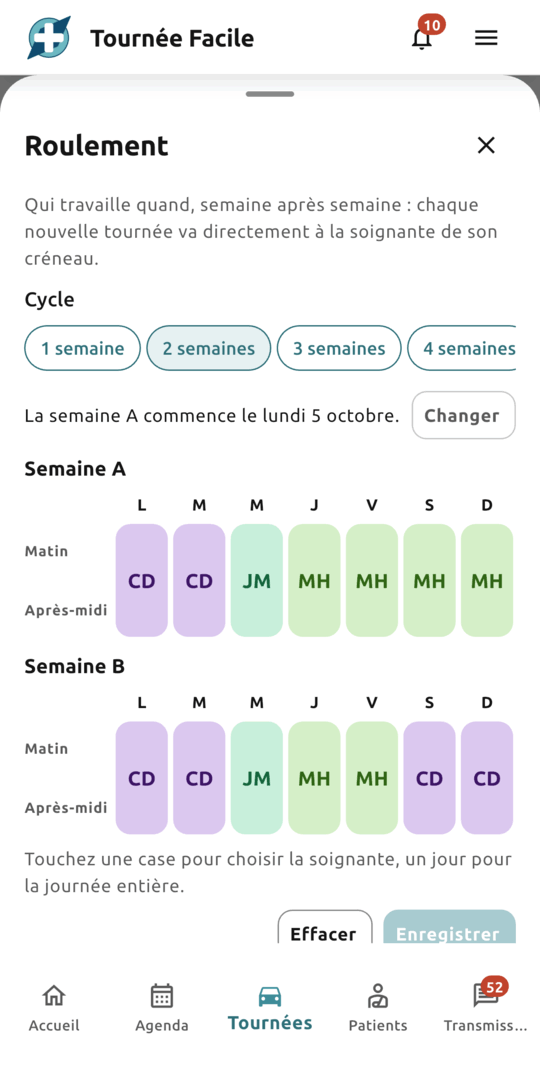
- Choose the cycle: one week if they are all alike, two to four if you alternate (week A, week B…).
- Check the starting point: “Week A starts on Monday 5 October.” To start from another Monday, click “Change”.
- Fill in the cells: click a cell to pick the nurse for that morning or afternoon, or the day’s letter to give her the whole day.
Finally, click “Save”. In the capture, week A gives Monday and Tuesday to Camille, Wednesday to Julie, and Thursday to Sunday to Hakim; week B hands the weekend back to Camille.
Rounds follow the rotation
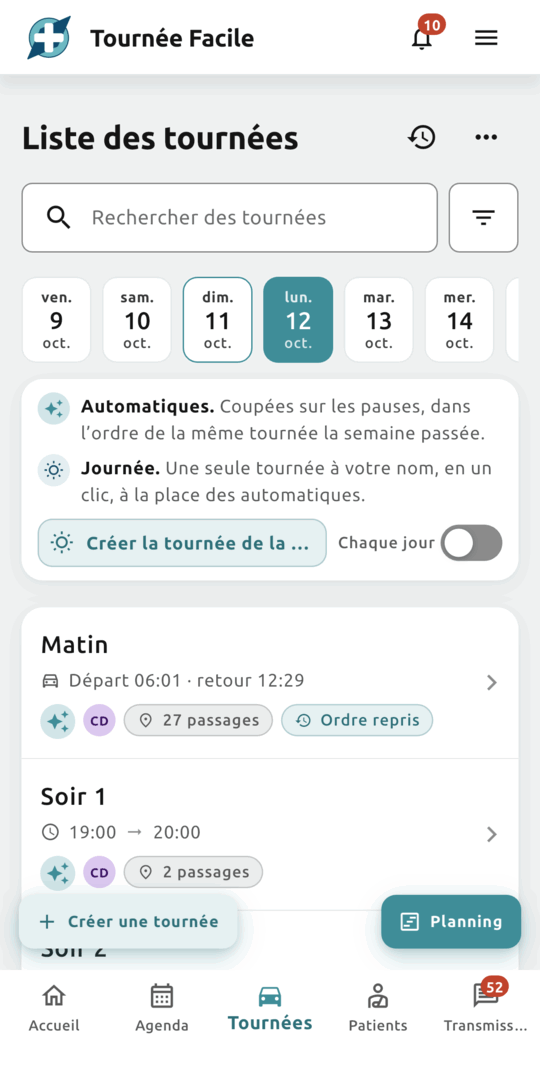
As soon as you save, the schedule fills up according to the rotation on every day ahead. There is nothing more to create or confirm: each round, morning or evening, goes to the nurse of its slot. A new patient, a moved appointment: the round that takes it already has its nurse.
To know who works in four months, open the Month view today: every day ahead already carries its nurse’s colour (the months ahead are part of the Pro plan).
Changing nurse does not redo the visiting order. The start and end addresses do follow her: a round that left from Camille’s home now leaves from Julie’s, and the route is redrawn in the same order, times included. An address set by hand, the practice’s for instance, stays where it is.
One exception: a whole-day round, made with “Create the whole-day tour”, stays with whoever created it. The rotation does not touch it.
Making an exception for one day
Julie cannot do Wednesday the 21st; Hakim will work that day. No need to touch the rotation: you only change that date.
- In the Week view, click the half-day, then Hakim; click the day’s icon to give him the whole day.
- In the Month view, click the day, then his name under “Assign the whole of … to”.
- In the Day view, click “Take” to keep a round, “Assign” to hand it to a colleague, or “Assign all to” for the rounds left with nobody. To move a single visit, click “Move to another tour” and pick another round of the day.
An assignment made by hand wins over the rotation, even if you change the rotation afterwards. Wednesday the 21st stays with Hakim.
New Year’s Day works the same way, months ahead. Friday 1 January falls to Hakim in the rotation; if Camille takes it this year, assign it to her now, in the Week or Month view. The rest of the rotation does not move. And if Hakim is away for the holidays, declare an absence: that is the next step.
Declaring an absence
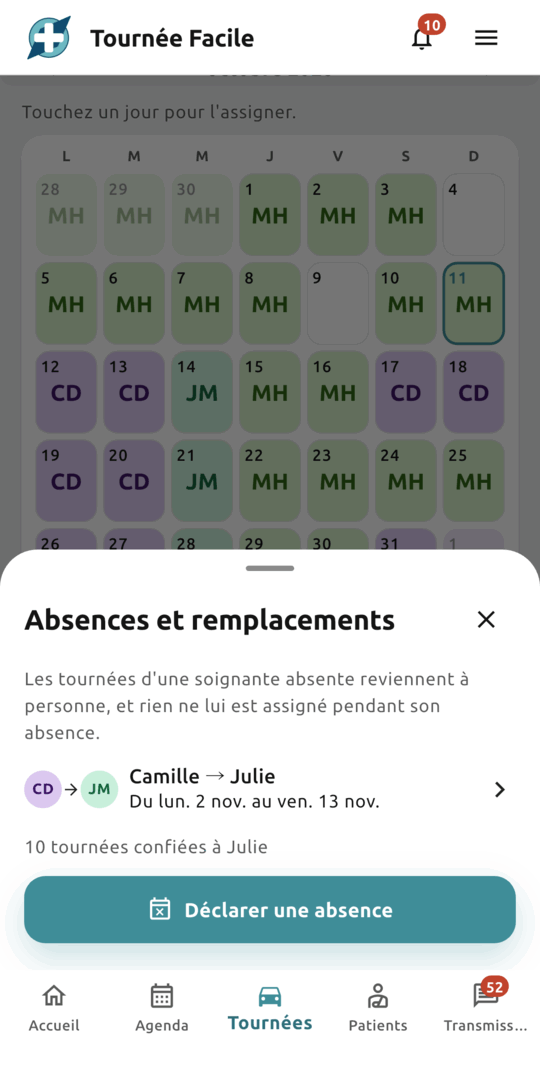
Click “Absences”, next to “Rotation”, then “Declare an absence”, and fill in four fields:
- Who is away;
- Replaced by: a colleague, regular or locum;
- From … Until …;
- or No end date, when the return date is not known yet.
Save: the absent nurse’s rounds on those days, upcoming and not started, go to the substitute. In the capture, “Camille → Julie, from Monday 2 to Friday 13 November”, and the outcome: “10 tours handed to Julie”.
Nobody to cover yet? Choose “Replacement needed”. Her rounds go back to be assigned, and her days turn orange in the schedule. The day you find someone, edit the absence: the substitute receives the rounds still left with nobody.
While the absence runs, anything aimed at the absent nurse goes to her substitute: the rotation, a new round, an assignment by hand. In the lists of nurses, she is greyed out.
When the dates change
An early return, longer holidays: the absence changes in one click, and the schedule follows.
- Early return: shorten the absence. The rounds of the freed days go back to their nurse (“5 tours given back to Camille”).
- Extension: lengthen it. The new days go to the substitute.
- Another substitute: change the name. The rounds held for the absent nurse go to the new one.
- Absence cancelled: delete it. Everything goes back to its nurse.
A round you have handed by hand to someone else in the meantime is never taken back: your particular decision comes before the general rule.
What each nurse sees
Nobody needs to announce the schedule: each nurse finds her rounds where she already looks for them.
- The substitute finds her rounds on her home screen and in the schedule, with the records, the instructions and the latest handover notes for each patient. On the day, a reminder reaches her half an hour before the departure time.
- The person given a round reads it in the summary e-mailed at 6 pm: “2 tours have been assigned to you”. It gives a number, no detail, and no notification goes out at each change.
- The absent nurse is left alone: no notification during her absence, then, the evening before she returns, a reminder “Tomorrow you work…”. For your ordinary days off, switch on the same rest mode in the notification settings.
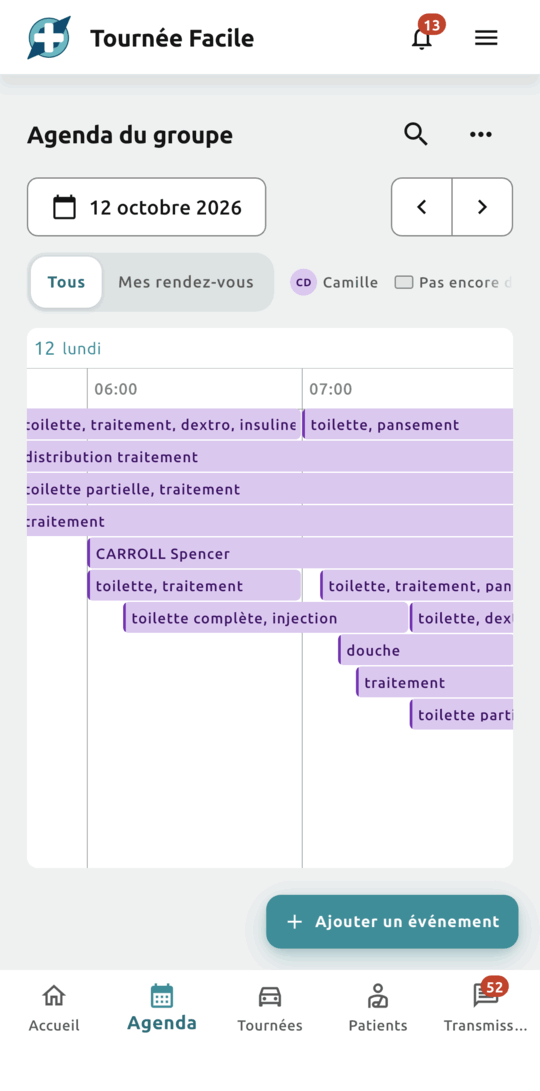
- The whole practice sees, in the calendar, each appointment in the colour of the nurse who does it; “My appointments” keeps one’s own.
Frequently asked questions
I changed the rotation, but one day did not move. Why?
On that day someone assigned the round by hand, and an assignment made by hand wins over the rotation. To put the rotation back everywhere, open “Rotation” and choose “Apply” over the period you want.
We run two rounds on the same morning. Can the rotation split them?
The rotation gives each half-day to a single nurse: both morning rounds go to her. Hand the second one to her colleague in the Day view; that assignment holds as long as you do not apply the rotation to that day again.
Does the substitute need an account?
Yes: invite her to the practice with the locum role. She then finds the rounds handed to her on her home screen and in the schedule. When she leaves the practice, her upcoming rounds go back to be assigned; the ones she did keep her name.
Who can change the rotation and the absences?
Anyone in the practice who can edit rounds: owners, associates, nurses, locums and assistants. A read-only account sees the schedule without being able to change it.
Is the schedule included in the free plan?
Yes: the Day and Week views, the current month, the current month’s absences and a one-week rotation, followed over the next four weeks. The months ahead, two- to four-week rotations, printing and projected revenue are part of Pro.
Want to try Tournée Facile?
The app is live: create your free account on the web, or download it from the App Store or Google Play.


Available in France for now — the rest of Europe is coming soon.